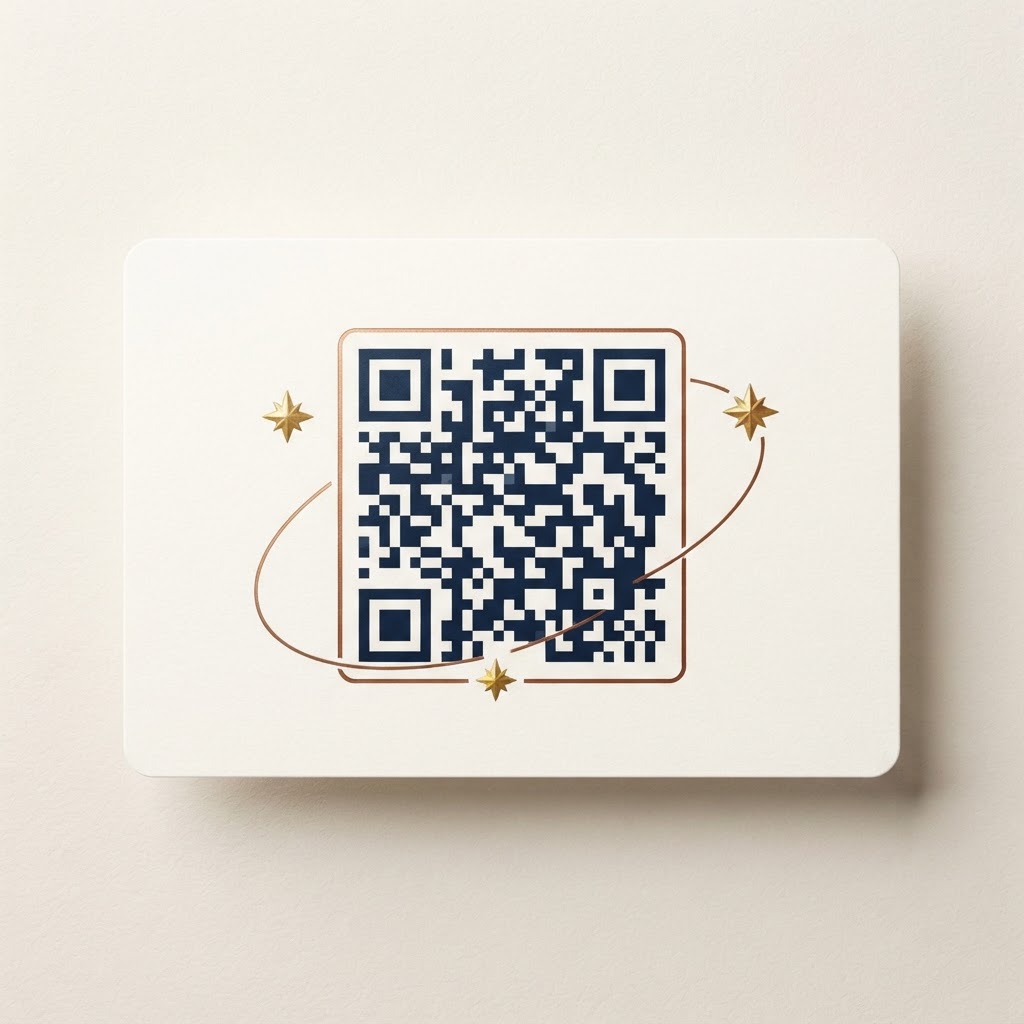
You have seen them on restaurant tables, coffee cups and receipts: a small square barcode that, when scanned, opens a review form. Done well, it is the engine behind printed Google review cards — and it is one of the simplest tools in local marketing — and also one of the most commonly misunderstood. This guide covers what it is, how to make one yourself, where to place it, and the part most guides skip: what happens after the scan.
What a Google review QR code actually is
A QR code is just a visual link. Nothing magical happens when a phone scans one — the camera reads the pattern and opens whatever web address is encoded inside it. A Google review QR code is simply a QR code that points to your Google review form: the page where a customer can rate your business from one to five stars and write about their experience.
That destination is sometimes your Google Business Profile review link directly, and sometimes an intermediate page you control that then sends the customer to Google. Both are legitimate. The difference matters, and we will come back to it.
Why QR codes work where asking does not
The uncomfortable truth is that most happy customers never leave a review. They finish a lovely meal, pay, leave, and think nothing more of it — while the one guest who had a bad evening goes home and writes three paragraphs. Over time that asymmetry quietly drags a rating down, because the reviews that exist are not representative of the experience most people actually had.
The reason is friction, not ingratitude. To review you the old way, a customer has to remember later, search for your business, find the right listing among several similar names, locate the review button, and face a blank text box. Every one of those steps loses people. A QR code on the table removes almost all of them: scan, tap, done — thirty seconds while the coffee is still warm.
How to set one up yourself (the manual way)
You do not need an agency or a subscription to make this work. Here is the honest DIY route:
- 1. Get your review link. In your Google Business Profile, go to the Home tab and look for “Ask for reviews”. It gives you a short link (a
https://g.page/r/...style URL) that opens your review form directly. Save it — this link is the asset; the QR code is just its picture. - 2. Generate the QR code. Any reputable QR generator will turn that link into a printable code. Use one that generates the code at a fixed resolution of at least 2×2 cm when printed, with a quiet zone — the white border around the pattern — kept clear.
- 3. Test it before printing. Scan it with both an iPhone and an Android phone. The most common DIY mistake is printing codes that point to a search results page instead of the review form; that single extra step loses a large share of would-be reviewers.
- 4. Print and place. Table talkers, the bill folder, the counter, receipts, and even the bottom of takeaway bags all work. Placement where the customer has a natural idle moment beats placement where they are rushing.
That is genuinely all a QR code needs technically. If you want more depth on the review link itself, our guide to setting up your Google Business Profile walks through the whole listing.
The part most guides skip: after the scan
Here is the catch with the bare DIY setup. When a customer scans a plain review QR code, Google opens a five-star picker and an empty text box. For a happy customer, that blank box is the moment reviews die. Writing a review — in public, in your own words — is genuinely hard for most people, and it is why plain QR codes often collect star ratings but very little written text.
Written text is what matters. Google treats reviews with substantial, specific text as far more useful than bare ratings, and future customers read the words, not the number alone. So the best systems do not just open the form — they help the customer through it. In Revly's case, the customer scans, taps a few options about their visit (food, service, atmosphere, value), and the system drafts a specific review they can edit and post under their own name. The customer always stays in control; nothing is posted for them, and nothing is written that they did not approve. If you want to feel the difference, the live demo takes about thirty seconds.
This distinction — between opening a blank form and helping the customer through it — is the single biggest predictor of whether a review QR program produces written reviews or just ratings.
Placement that actually gets scans
Placement follows a simple rule: put the code where the customer is happy, idle, and holding their phone.
- Table talkers and bill folders — the two highest-performing spots in most venues. The bill moment is especially strong: the experience is fresh and the score is settled.
- Receipts and takeaway packaging — essential for delivery-heavy businesses where the customer never sees a table.
- Staff conversation, not staff pressure. A waiter saying “if you enjoyed it, a Google review genuinely helps a small place like us” converts far better than a laminated demand. Pressure creates resentment; a human ask creates goodwill.
Stay on the right side of Google's rules
Two rules catch businesses out. First, no review gating: Google's policy says you may not ask only happy customers to review while steering unhappy ones elsewhere. Your QR code must be for every customer. Second, no incentives: discounts, free items, or entry into a prize draw in exchange for reviews violate the policy and can get reviews removed. If you want a fuller treatment of the grey areas, see our guide on how to get more Google reviews the honest way.
Systems that draft reviews for customers to edit and approve — like the one described above — are on the right side of this line: the review describes the customer's own experience, in words they can change, posted by them voluntarily. What crosses the line is anything fake, bought, or posted on someone's behalf without their involvement.
What to do this week
Get your review link from your Google Business Profile, make a QR code, test it on two phones, and put it where customers wait. That is the free version, and it is worth doing even if you never spend a pound.
If you find the blank-text-box problem is real for your customers — and for most venues it is — Revly sets up a QR review system that drafts the review with them, with your branding. (Revly is currently running a free pilot — the first 50 cafés get everything free.) You can see exactly what your customers would experience on the demo page, or ask us anything — we reply within one working day.